

Getting Started
Ready to register for your first course on Design Learning by ASID? Let’s take you through it step by step!
FIRST – Navigation and Site Browsing
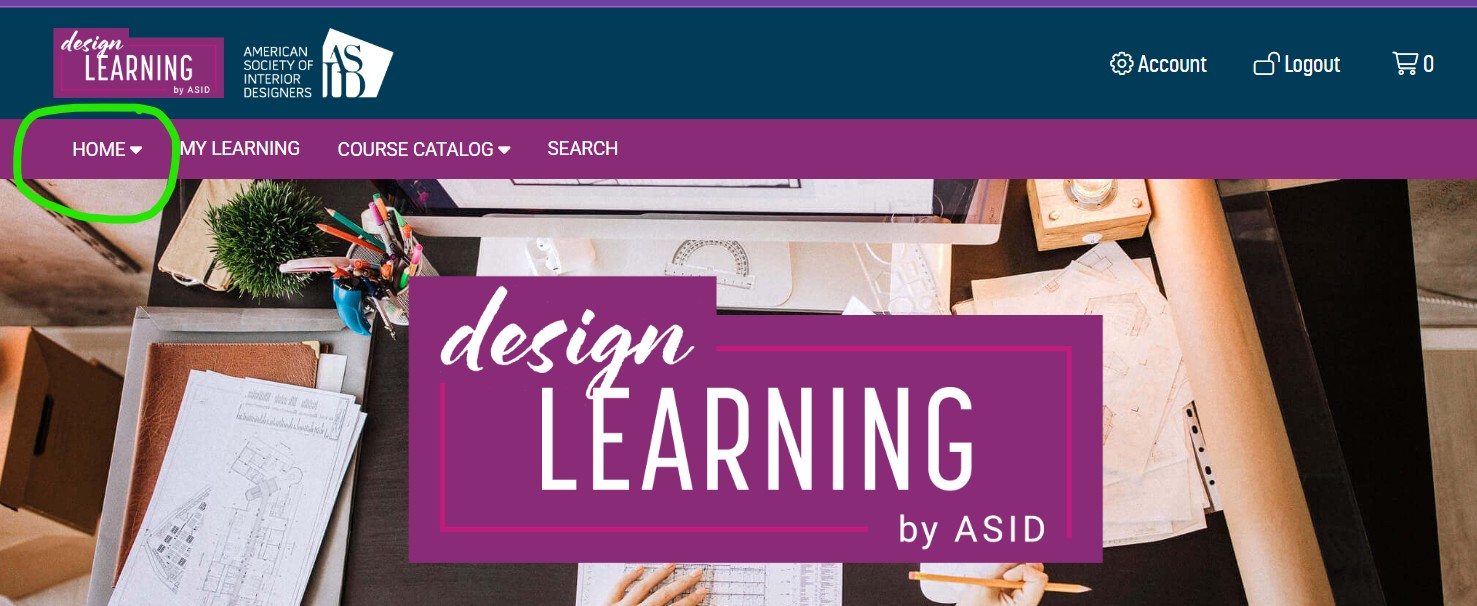
There are a few ways you can search for courses and programs on Design Learning by ASID. At the top of the main homepage of the catalog, there are drop-down menu in the nav bar that are available to you on every page of the catalog. Any time you want to return to the Catalog Homepage, just click on HOME to bring you back there.
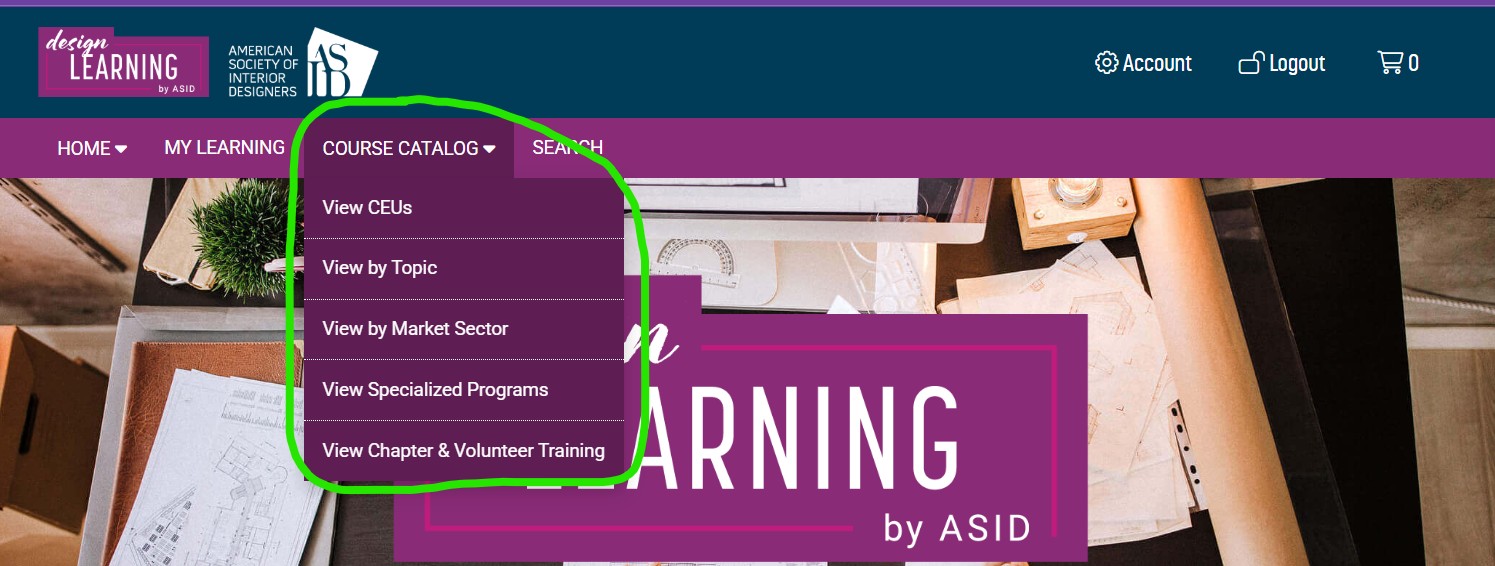
The COURSE CATALOG drop-down menu provides a list of categories to find courses by topic, market sector, CEU type, and even new Specialized Programs such as certificates, digital badges, partnership education offerings, and more. If you click on the COURSE CATALOG tab, you can review the full catalog of all courses and programs.
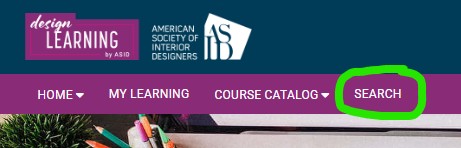
You can also search for courses by keyword(s) using the SEARCH feature in the nav bar. The Search feature will find courses that contain the term(s) you enter in the title and/or description as choices. If your search does not bring up any results, try a more general term or search by category instead.
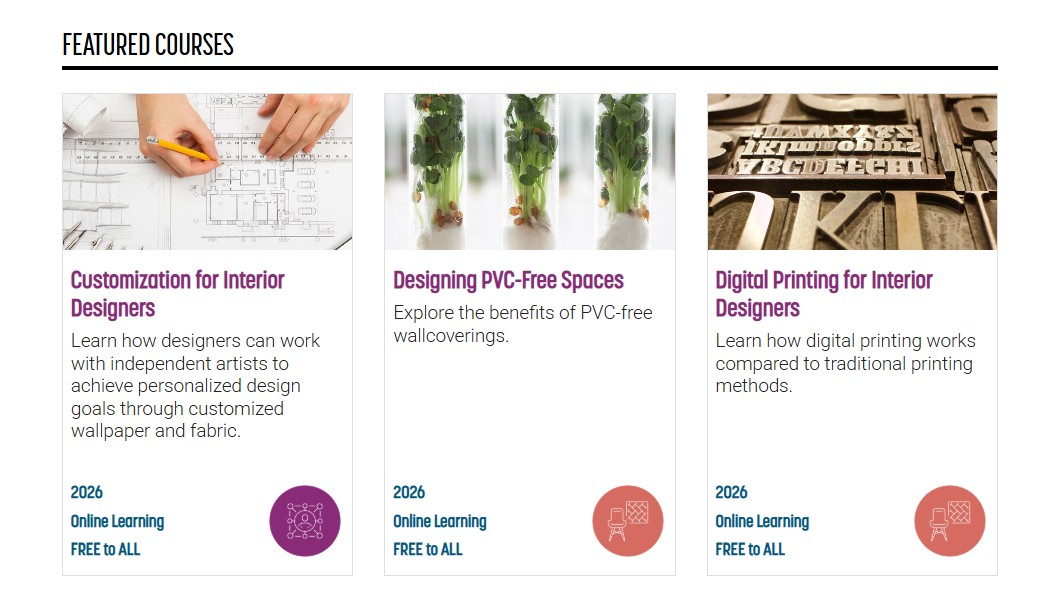
The Catalog Homepage has some other ways to find courses. For recently added and popular courses, you will find those in the FEATURED COURSES section of the page. Scroll down a little further, and you can CHOOSE YOUR LEARNING EXPERIENCE by clicking on one of the category blocks on how you want to browse for courses.

MORE - Catalog Icons
Design Learning by ASID has an icon system associated with its course categories. You will find the Catalog Icon for each course in two (2) places – in the Course Listing and on the Course Information Page.
All courses in the Catalog are assigned a primary category icon in one of the following categories listed here:
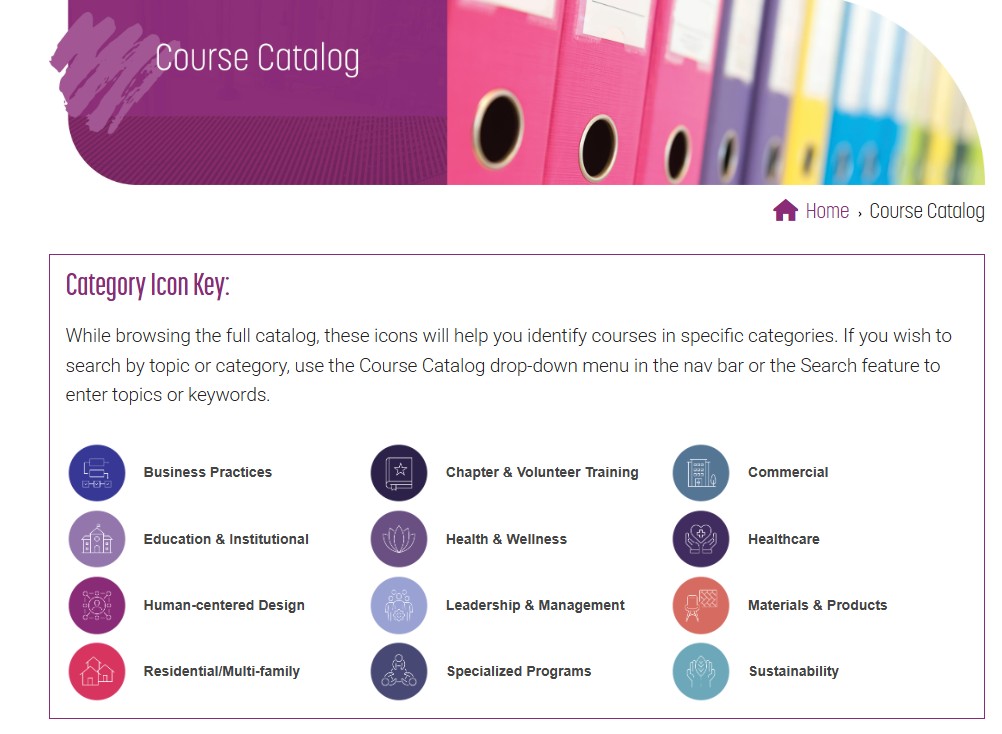
Some courses may fit into more than one category. You might see courses on a topical page that has a different icon than many other courses on the same page. This is not an error. It’s just a course that can be listed in a few relevant categories.
INFO – Course Information Page
You can review the details of each course by clicking on the Course Listing to open up the Course Information Page. The Course Information Page provides a full course or program description, learning objectives, CEU credit approvals and skill level, and information about the course presenter if applicable. The accordion bars on the lower half of the page display these details when expanded.
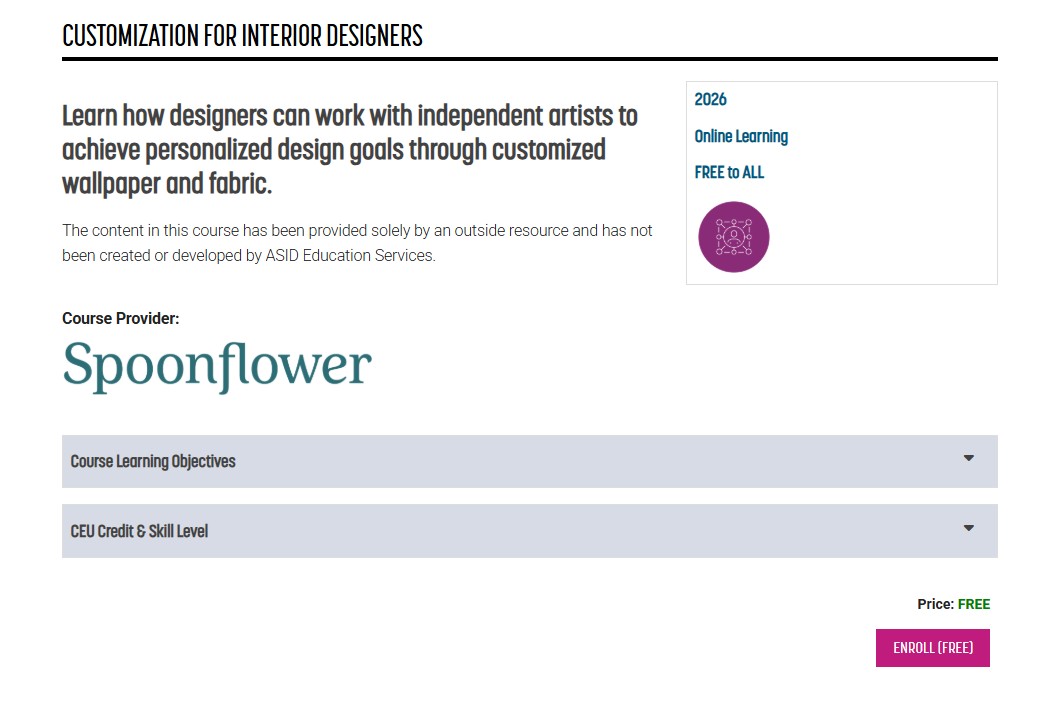
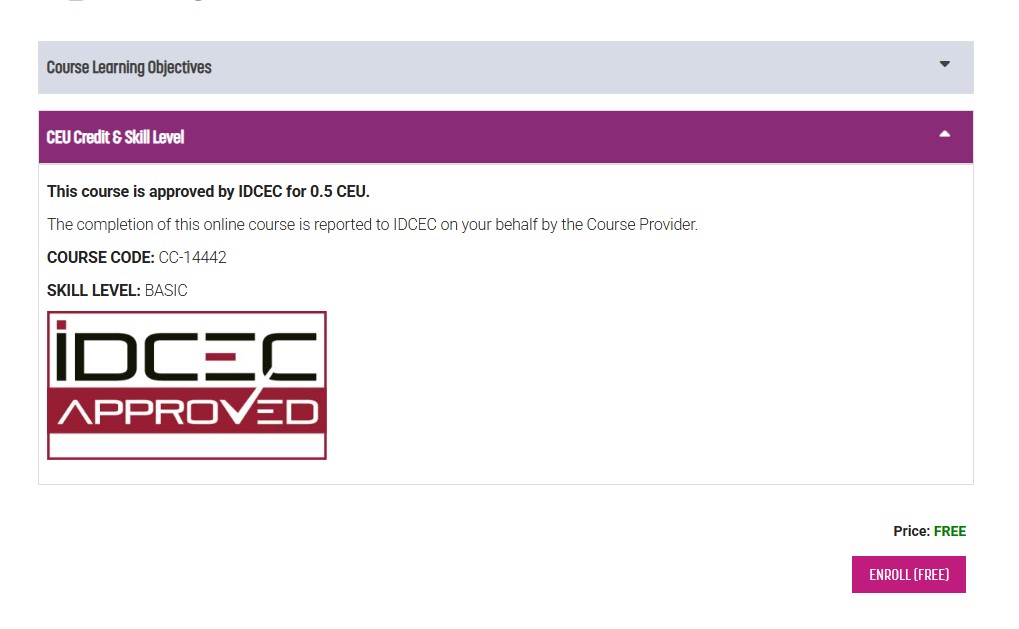
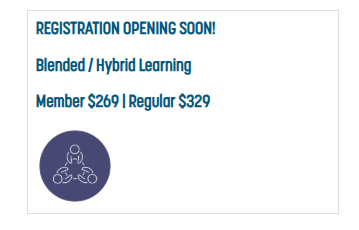
In the upper right corner of the Page is a Quick Info block with some additional information, which can be slightly different for each course. It will always display the Catalog Icon assigned to the course, but it may contain pricing information and access, delivery format, creation year, promotional offers, or other similar details related to the course or program.
REGISTER – Selecting a Course for Registration
To register for a course, click on the Course Listing and open the Course Information Page for the selected course. At the bottom of the Course Info Page there will be a button that will have one of the following notations in it:
- ENROLL (FREE)
- REGISTER
- JOIN WAITING LIST
If a course is offered Free to All or Free to Members exclusively, there will be no pricing displayed. Clicking on the ENROLL (FREE) button will automatically register you for the course and there will be no payment window. The system will add it directly to your Design Learning homepage.
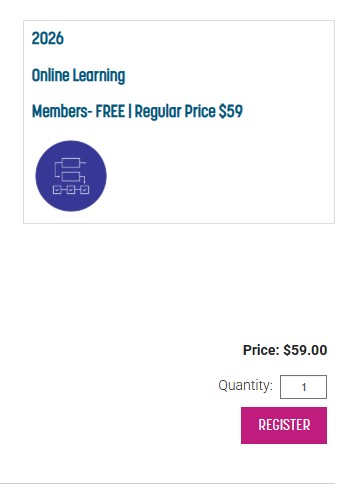
For any course that has a price associated with it that is open to registration, the REGISTER button will have a price listed above it. Any courses that are Member Exclusive access with special pricing or has Member or Guest Pricing will have this button. Log in with your ASID account to see the appropriate pricing. If you are unsure that you are receiving the proper pricing, check the Quick Info block to see the pricing details. Once you are ready to register, click the Register button to make your purchase.
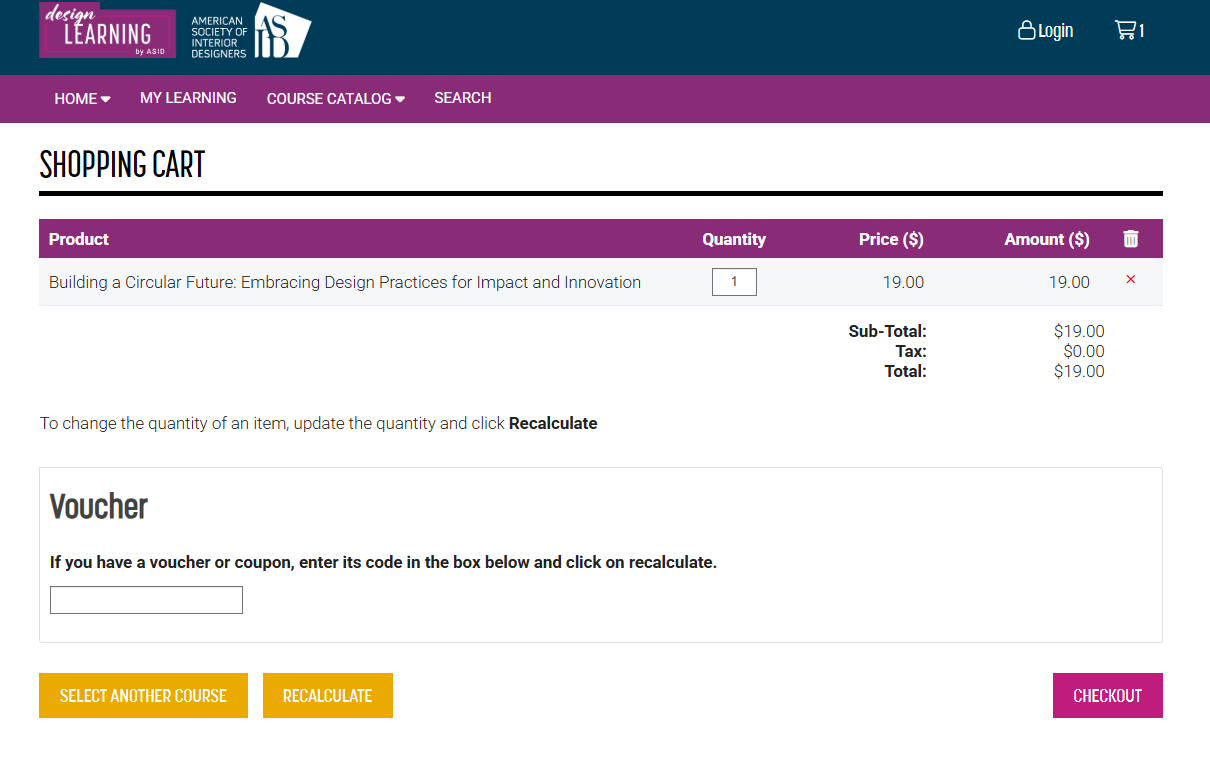
The system will then take you to your Shopping Cart to show that the course has been added there for purchase. If you would like to search for more courses, click the SELECT ANOTHER COURSE button, and it will bring you back to the Catalog Homepage. If you are finished with your course selections, you can proceed to Checkout. If you have a Voucher (a discount code) to be applied, put the code information in the space provided and click the RECALCULATE button before clicking Checkout.
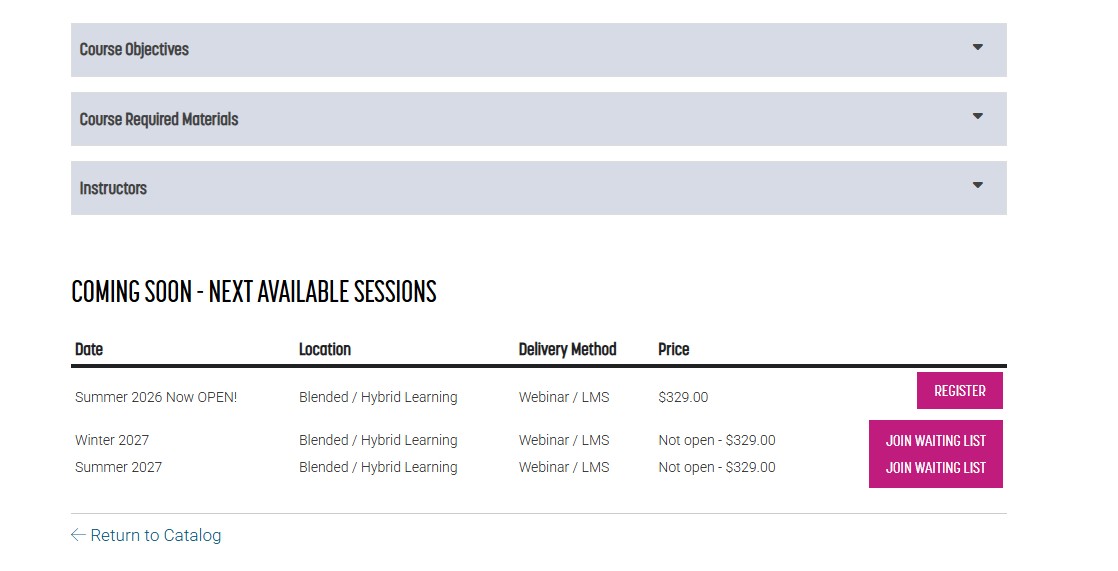
For courses or programs that are offered during certain dates and times, their Course Information Page will list the current and future course offerings. If registration is not open yet, the Join Waiting List button will be visible. By clicking on this button, you will be able to add your name and email address to the waiting list. Once the course opens for registration, you will receive an email automatically from Design Learning letting you know the course is now open for registration.
IMPORTANT – Set Up your Learner Account and Complete Registration
If you used Design Learning before, your Learner Account is in the system already. You just need to log in for the first time to activate your account in the new system. To do this, follow these steps:
- Go to the left side of the screen where it says Already registered?
- This is a very important step. Click the Login button and proceed to entering in the exact email address and password you use to log in to the ASID website. It will prompt you as if you forgot your password, but please enter the current password you use.
- The system will give you 5 attempts to log in before it will lock you out. Once you have logged in, your Learner Account is now active, and you can proceed with payment for your registration.
- If the course has free access, the system will automatically register you for the course you selected.
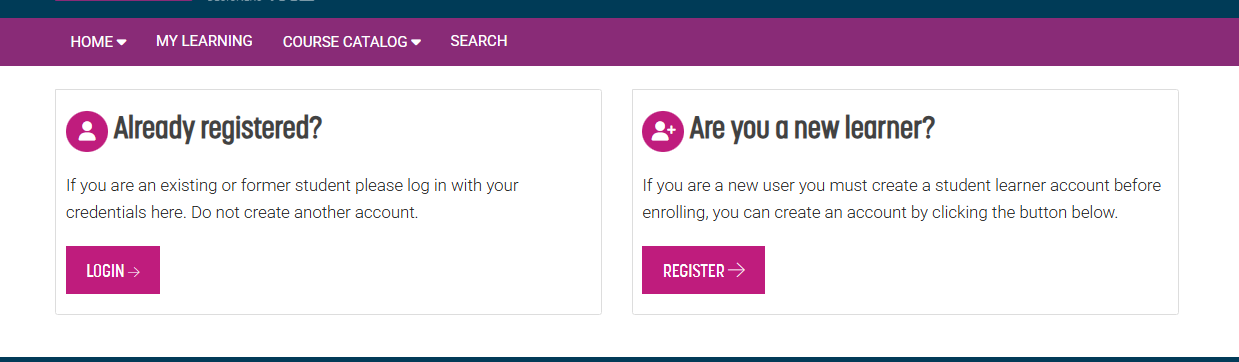
If you are new to our system or have never used Design Learning before, you will need to set up as a “new learner”.
- Go to the right side of the screen where it says Are you a new learner?
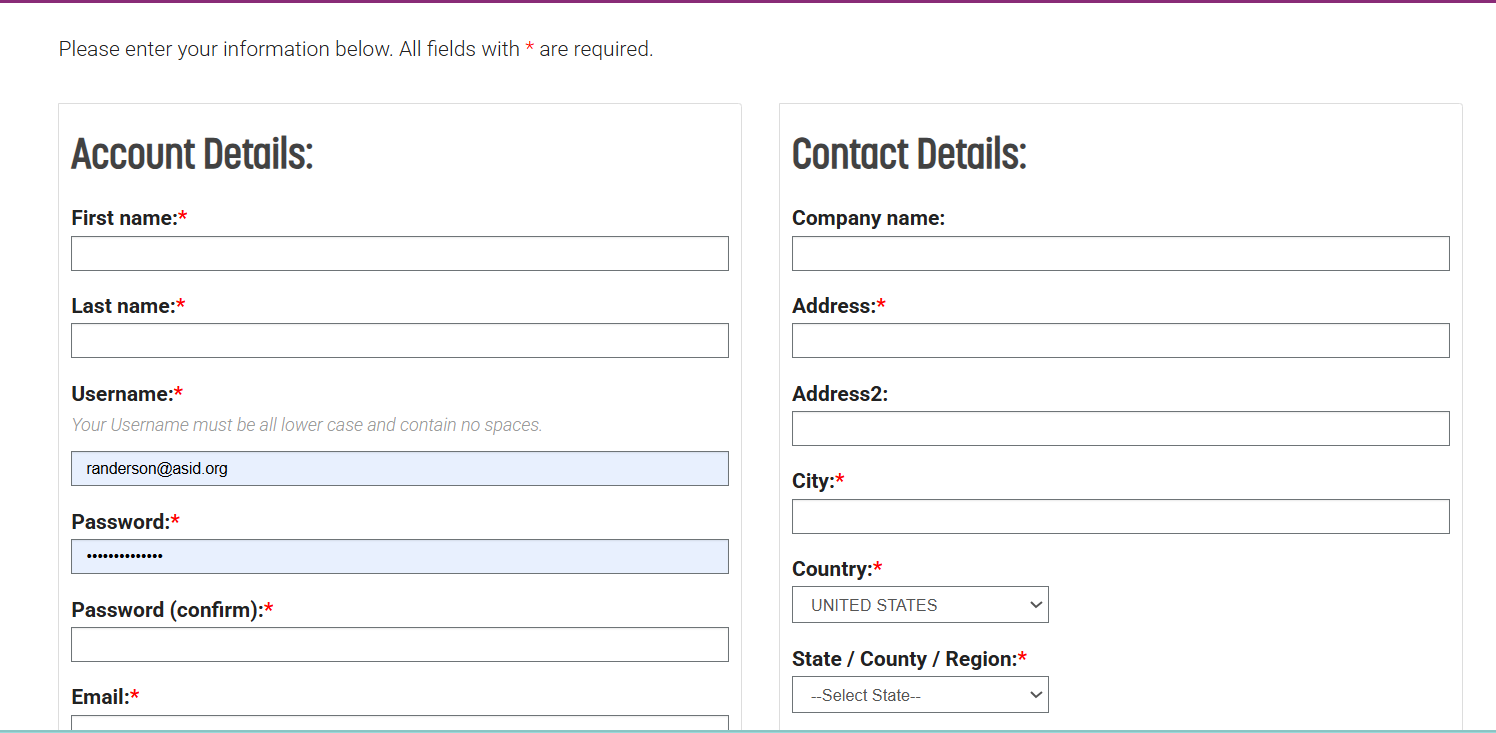
- Click the Register button and proceed to the Account Details and Contact Details elements on the next page. Set up your Learner Account by completing all fields with an asterisk *.
- Check the reCAPTCHA box on the lower left side and then click Create Account to complete your Learner Account set up.
Contact customer service at membership@asid.org if you need assistance with new account set ups.
If you have not logged in yet, you will be prompted to do so. Follow the instructions at the top of the page. To continue checkout, the system will bring you to an Invoice page where it lists all courses you have selected for registration and the total amount to be paid. Enter your payment by credit/debit card for your purchase. We use a secure payment processing system to keep your information protected. The Design Learning by ASID site does not store payment information in the system. Once you click Complete Purchase, the system generates a receipt with an Order #. Keep this Order # for your records.
If you register for a course that is FREE, you will still be prompted to either log into your existing inactive account or set up a New Learner account. Follow the steps above to set up your Learner account.
After registration is complete, you will be able to find your course in MY LEARNING. This tab is located in the nav bar at the top of the page. Clicking on MY LEARNING opens a new window and takes you to your My Learning homepage. You will know that you are on the correct site if you see a welcome message on the page that contains your name in it. You should see your registered course under the My Courses section just below the Announcements space. This page is where you will access your course and/or program content.
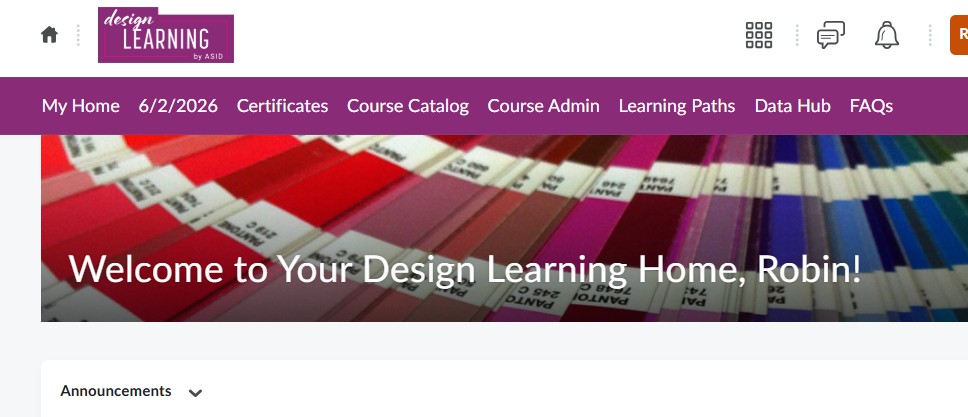
If you do not see your course there or have other technical difficulties, please contact us at designlearning@asid.org. FAQs and instructions on how to use and navigate the My Learning space are available on that site. Log into your Learner Account and click on My Learning to access.